

What you need
A phone (or computer) to run the game, a TV to show it, and your players’ own phones.
Your phone or computer
You run the game from it. To Cast, use Chrome on an Android phone or a computer; any phone, iPhone included, works with the code.
A TV
One with a Chromecast or Google TV, or a smart-TV browser or Fire TV. A laptop browser works as the screen too.
Your players’ phones
Players scan the QR code on the TV or type the game code in their browser. No app, no login — just a name.
Two ways to get it on the TV
Cast from Chrome to a Chromecast or Google TV, or open the TV address on any TV browser and type the code it shows into your phone.
Way 1
Cast
For a host using Chrome on an Android phone or a computer, with a Chromecast or Google TV.
- 1Create your game in Chrome on your Android phone or computer.
- 2Cast the game to your Chromecast or Google TV.
- 3Nothing is installed on the TV — the game appears on it.
Way 2
Show on TV by code
For any host, iPhone included, with a smart-TV browser, Fire TV or a laptop browser.
- 1Open the TV address in the TV’s browser (smart TV, Fire TV or laptop).
- 2The TV shows a code.
- 3Type that code into your phone — the TV is linked to your game.
Which way is mine?
Cast
- If
- You host from Chrome on an Android phone or a computer, and your TV has a Chromecast or Google TV.
- Then
- Cast the game to the TV from Chrome. Nothing gets installed on the TV.
Show on TV by code
- If
- You host from any other phone, iPhone included — or your screen is a smart-TV browser, Fire TV or a laptop browser.
- Then
- Open the TV address on that screen, then type the code it shows into your phone.
Hosting from an iPhone and your only screen is a Chromecast? Run the game from an Android phone or a laptop instead.
Where the caller’s voice plays
When you cast to a Chromecast or Google TV, the caller's voice plays from your own phone or computer, so keep its screen on; a TV linked by code speaks once you turn its voice on, if its browser supports speech, otherwise your device does.
While your phone or computer is the voice, its screen must stay on. The app keeps it awake while a TV is linked and reminds you: “Keep this screen on to hear the caller.” A locked phone cannot speak.
What the TV shows — and your phone becomes the remote
The TV shows the lobby, the live game and the results, while your phone runs the game like a remote.
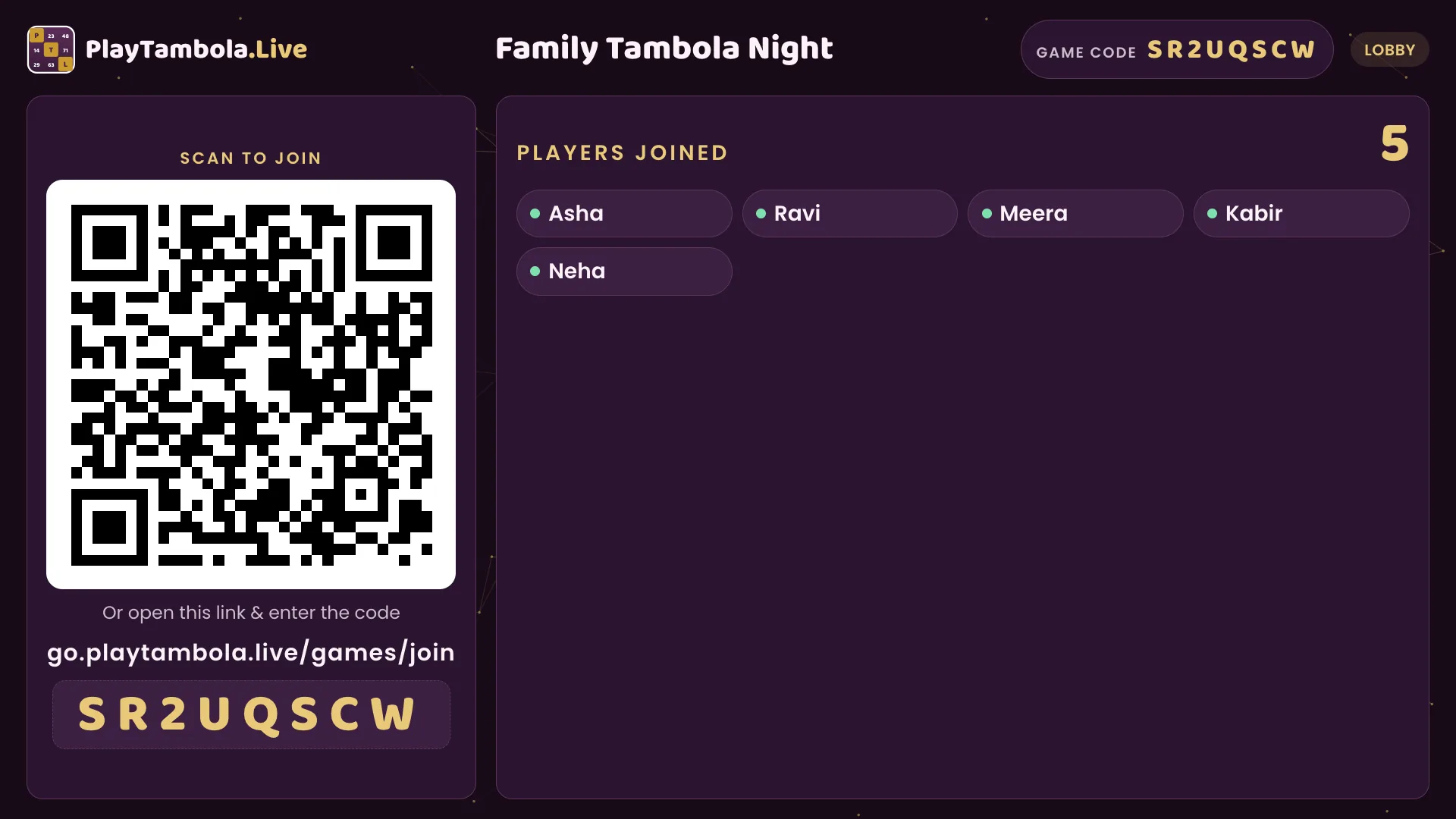
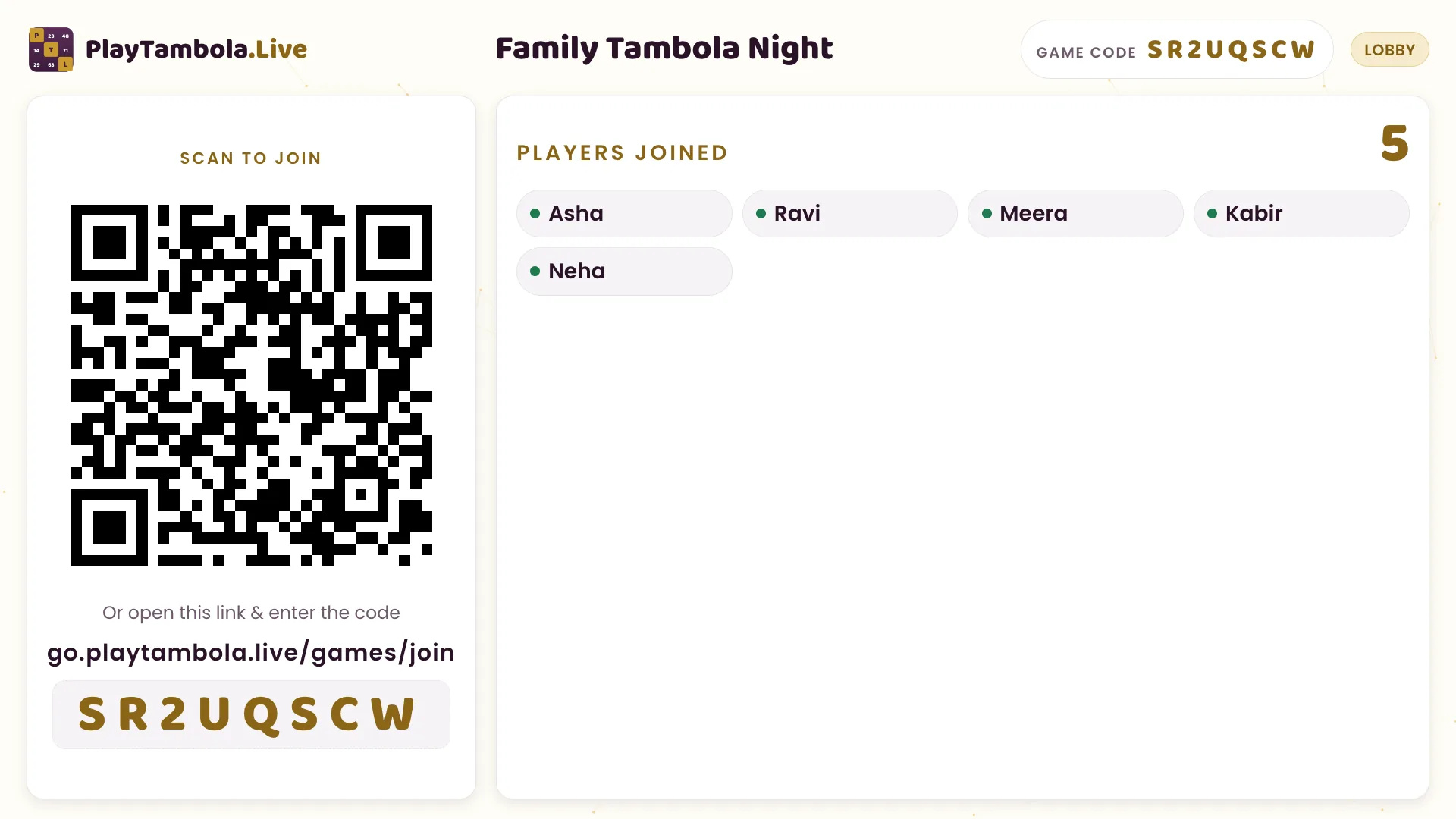
Lobby
The join QR code, the game code and the players who have joined.
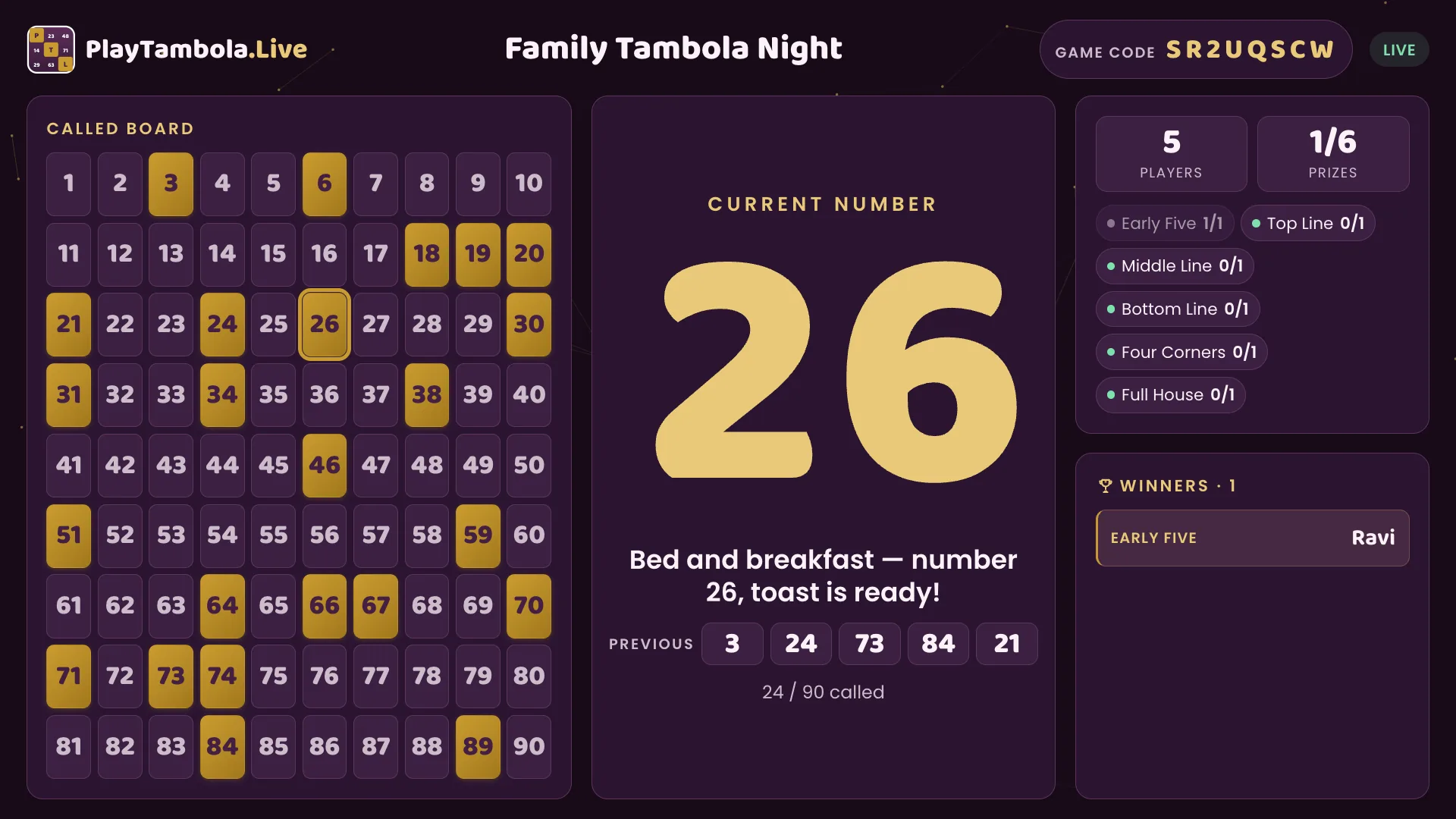
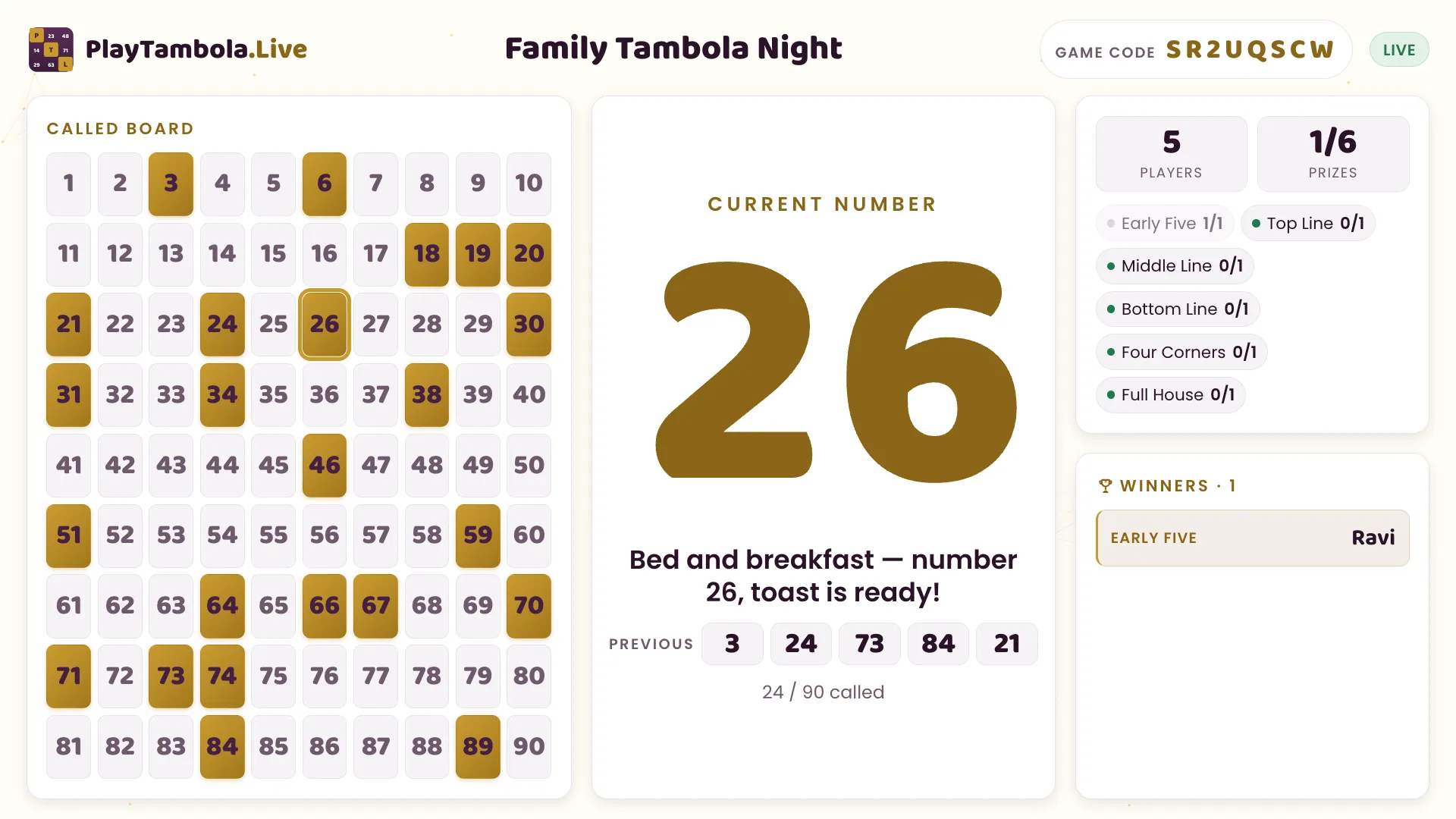
Live game
The big number, the caller line, the called-numbers board and the winners.
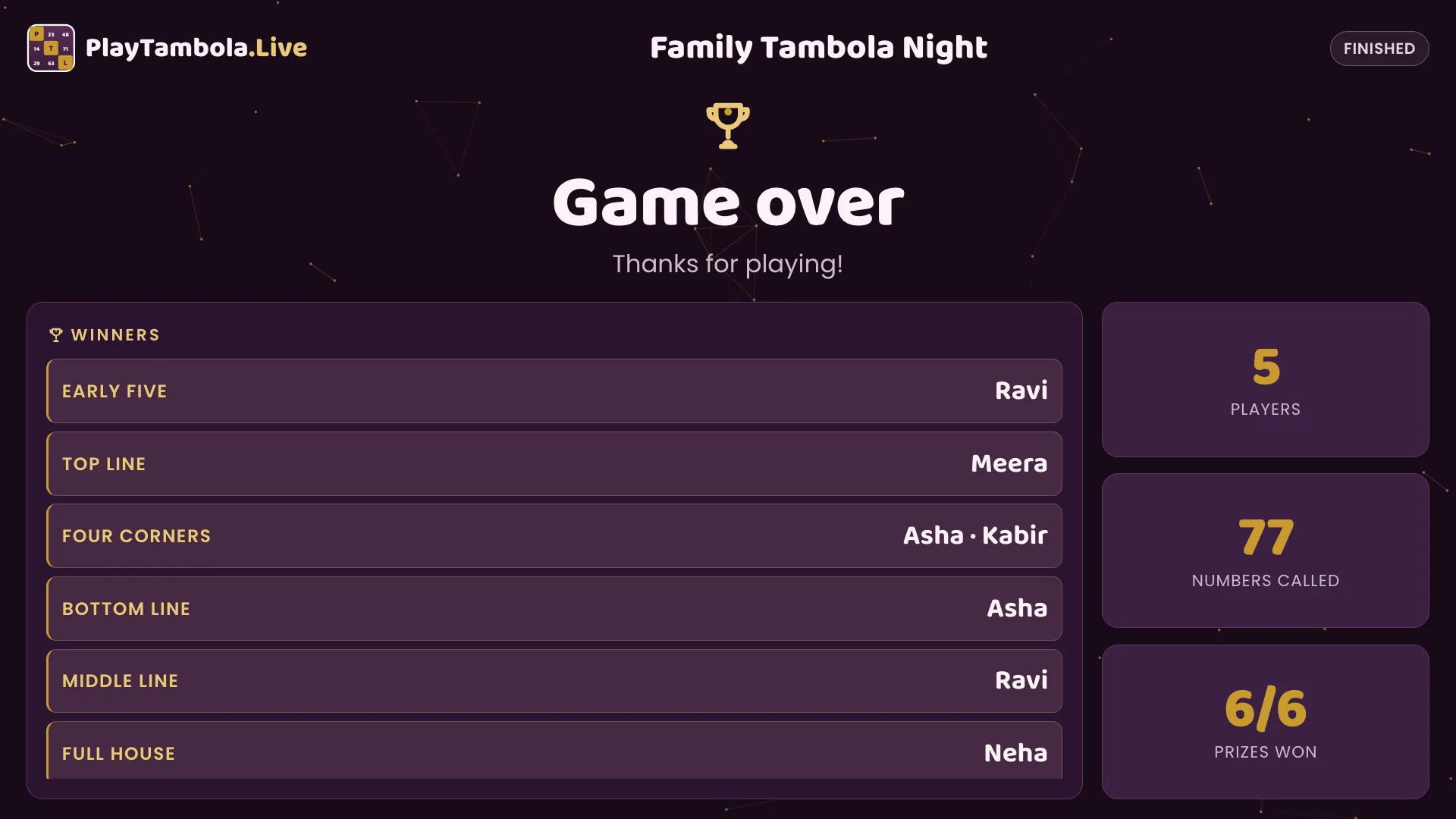
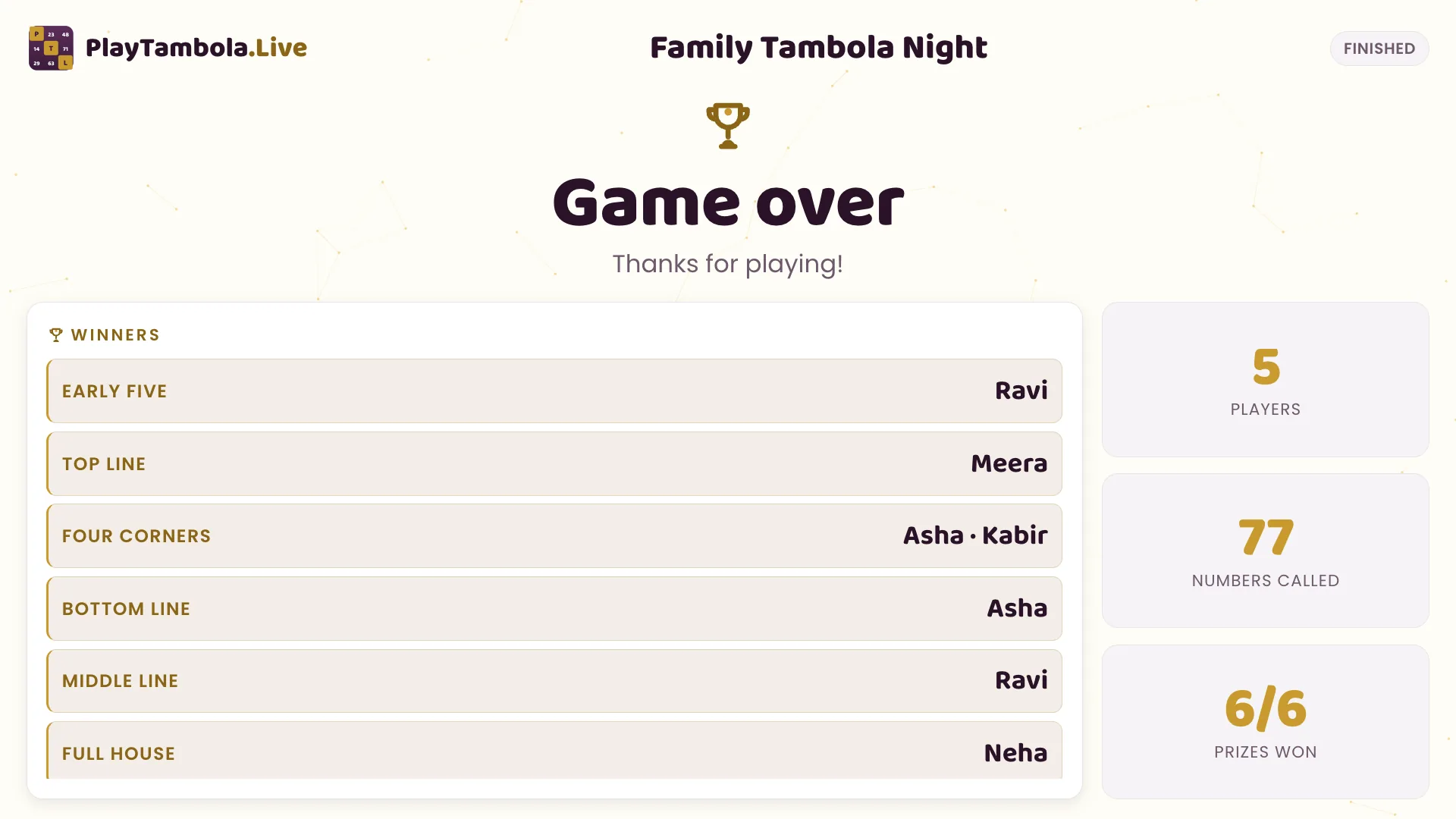
Results
The winners of every prize when the game ends.
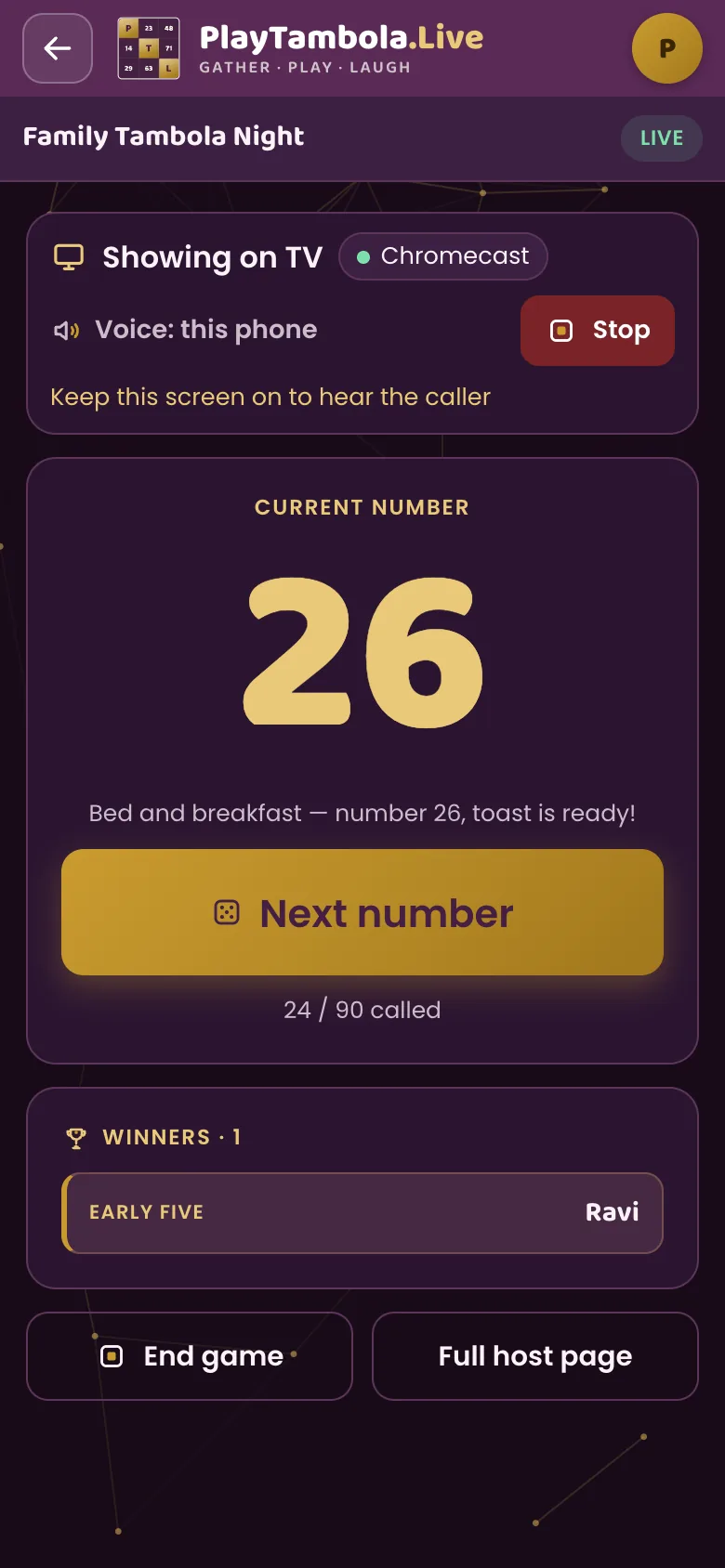
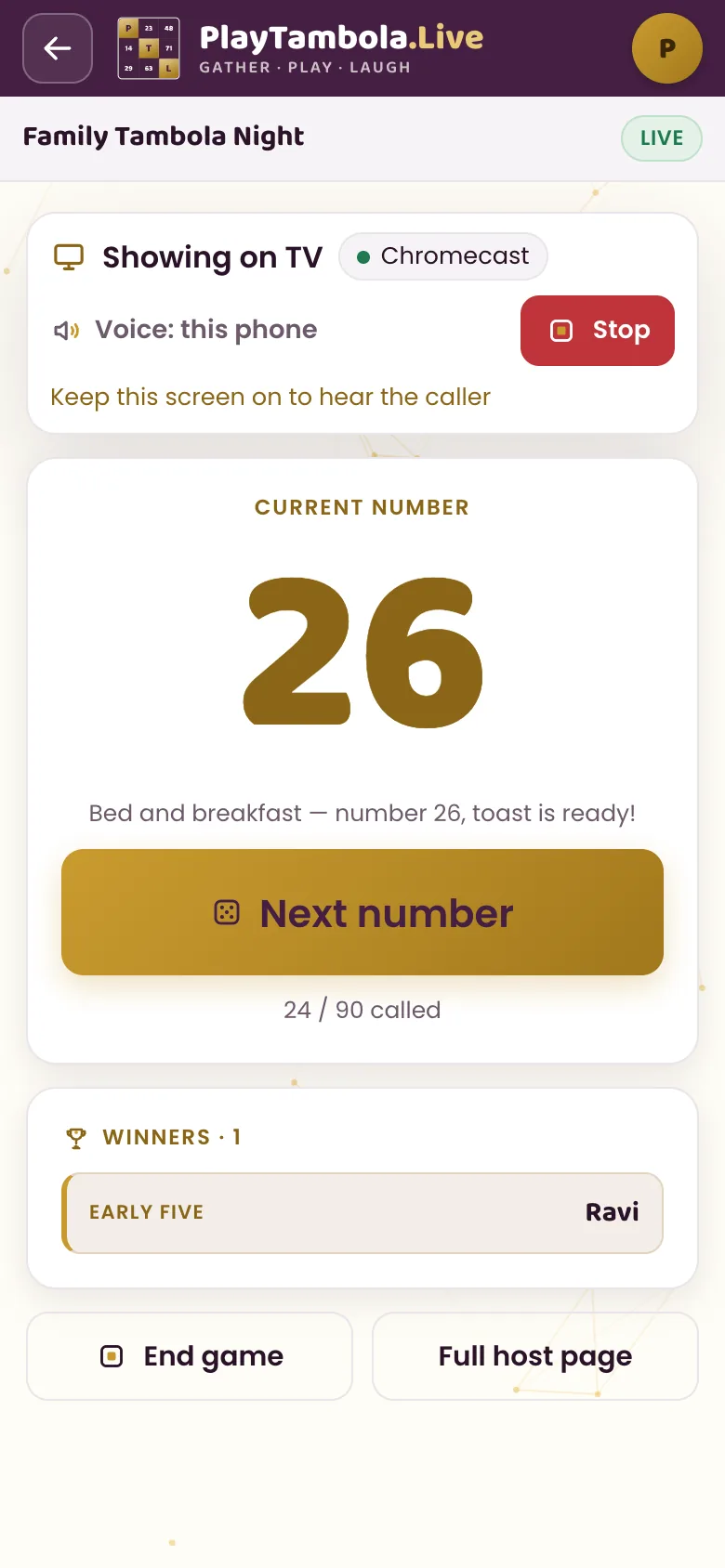
Your phone, the remote
While a screen is linked, your phone becomes a remote with:
- The current number
- Next number
- Stop
- End game
- Up to 3 screens per game.
- The TV picture keeps updating if your phone sleeps — but the caller’s voice does not, so keep the voice device’s screen on.
Tambola on TV: questions
Does the TV need an app?
Can I use an iPhone?
Where does the caller’s voice come from?
How many screens can I use?
What if my phone locks?
Do players need anything different?
Can I still use a laptop and a projector?
Your phone + your TV. That’s the setup.
Create a game, put it on the TV and call the first number. Free for up to 5 players.